You've bought your eSIM and received the QR code via email – now it's time to set it up. In this guide we'll walk you through installing and activating your eSIM on iPhone and Android, step by step.
Before you start
- ✅ WiFi connection – you need an active internet connection to scan the QR code and download the eSIM profile
- ✅ Compatible device – make sure your phone supports eSIM. Check your device here
- ✅ QR code ready – open the email from eSIM ALB on another device (laptop, tablet, another phone) or print it out
- ✅ Enough battery – at least 50% recommended to avoid interruptions during installation
Important: You can install the eSIM at home before your trip. The validity only starts when you connect to the mobile network in your destination country – so there's no rush.
iPhone: Install eSIM
Method 1: Scan QR code (recommended)
- Open Settings
- Tap Cellular (or "Mobile Data" depending on your region)
- Tap Add eSIM
- Choose Use QR Code
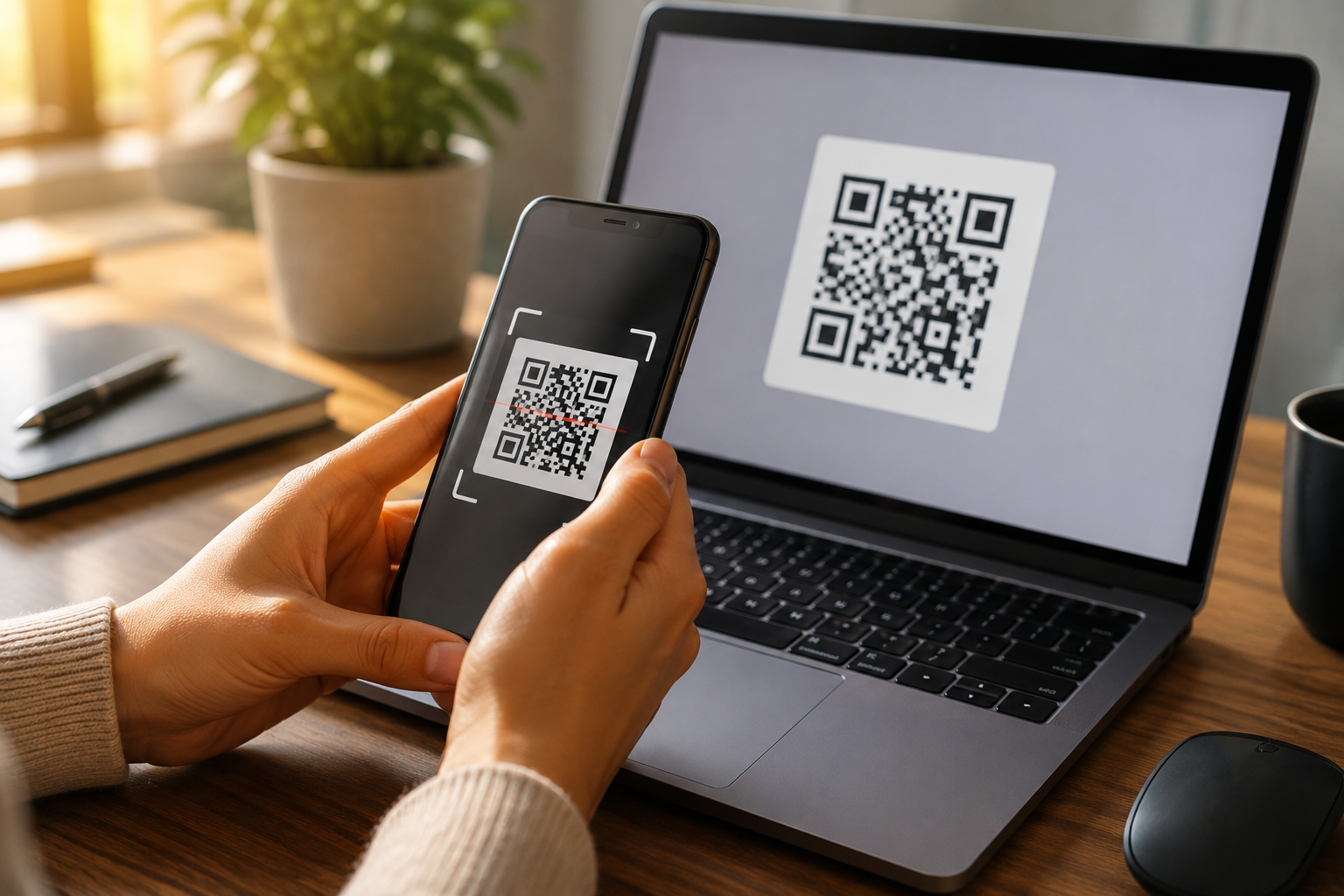
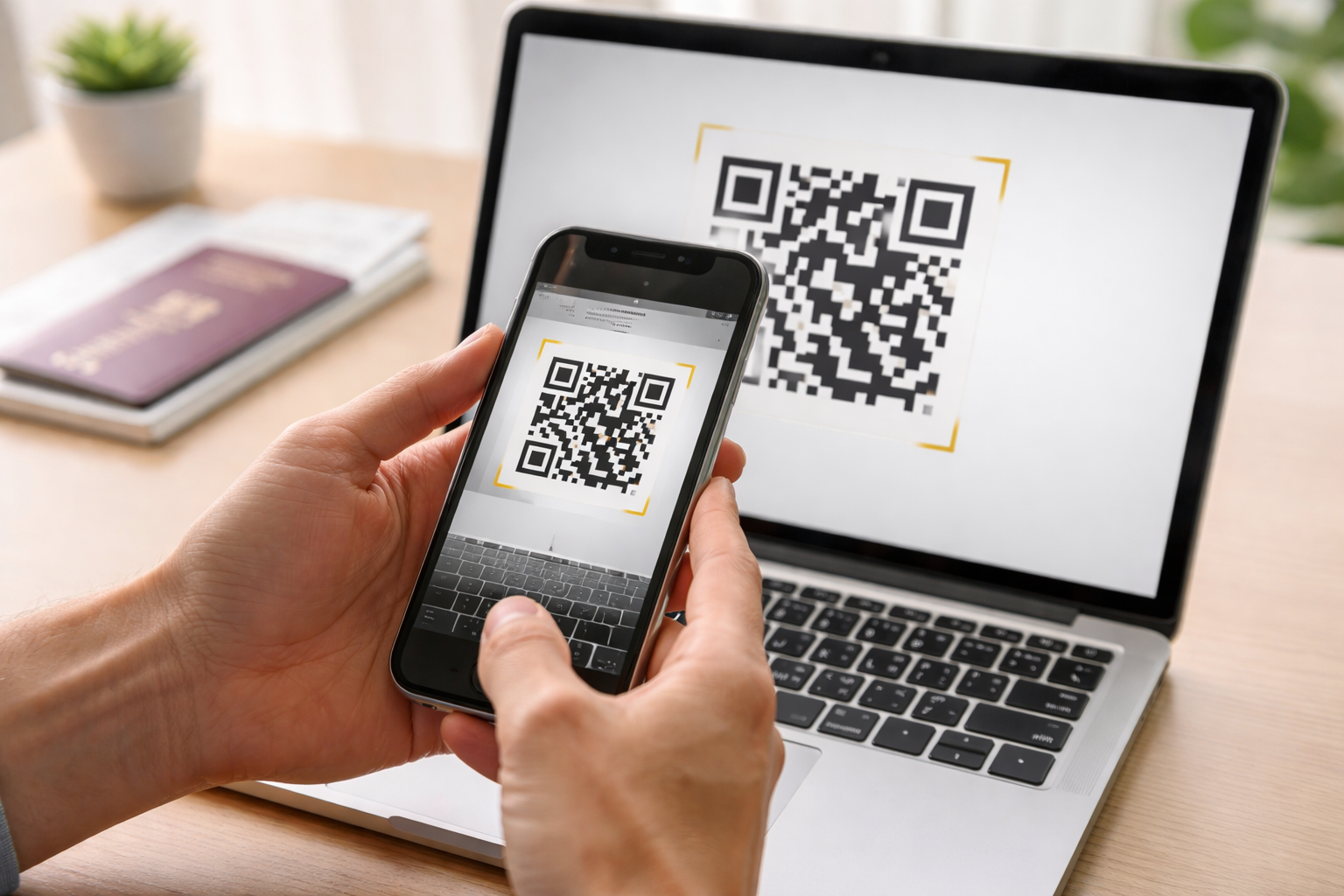
- Point your camera at the QR code from your email
- Tap Continue and wait for the eSIM profile to download
- Give the eSIM a label (e.g. "Albania Travel" or "Kosovo 2026")
- Choose Secondary as the line type
Method 2: Manual entry
If the QR code can't be scanned (e.g. you only have one device), you can enter the activation code manually:
- Settings → Cellular → Add eSIM
- Tap Enter Details Manually
- Enter the SM-DP+ Address and Activation Code from the email
Android (Samsung Galaxy): Install eSIM
- Open Settings
- Tap Connections → SIM Manager
- Tap Add eSIM
- Tap Scan carrier QR code
- Point your camera at the QR code
- Wait for the profile to download
- Confirm the installation
Android (Google Pixel): Install eSIM
- Open Settings
- Tap Network & Internet → SIMs
- Tap Add SIM → Download a SIM instead
- Tap Next → Scan the QR code
- Confirm and wait for the download to complete
After installation: Configure correctly
Use eSIM for data
Make sure your phone uses the eSIM for mobile internet:
- iPhone: Settings → Cellular → Mobile Data → select your eSIM
- Android: Settings → SIM Manager → Mobile Data → select your eSIM
Enable roaming
For the eSIM to work abroad, data roaming must be enabled (this is free since you have a data package):
- iPhone: Settings → Cellular → [your eSIM] → Data Roaming → ON
- Android: Settings → SIM Manager → [your eSIM] → Roaming → ON
Keep your main SIM for calls
Make sure calls and SMS still go through your main SIM card:
- iPhone: Settings → Cellular → Default Voice Line → your main SIM
- Android: Settings → SIM Manager → Calls/SMS → your main SIM
Common problems and solutions
"Add eSIM" doesn't appear
Your device may not support eSIM, or it may be carrier-locked (SIM lock). Some older devices or certain carrier versions don't have eSIM capability. Check compatibility here.
QR code not recognized
- Make sure you're connected to WiFi – the phone needs internet to download the eSIM profile
- Hold the camera steady and at a sufficient distance from the screen
- Try displaying the QR code on a bigger screen (laptop or TV)
- Make sure screen brightness is turned up on the device showing the QR code
- Use the manual entry method as an alternative
eSIM installed but no internet
- Check that Data Roaming is enabled for the eSIM
- Verify that the eSIM is selected as Mobile Data source
- Restart your device – this often resolves connection issues
- Wait 1–2 minutes after activation – sometimes it takes a moment to connect
- Make sure you're in the destination country – the eSIM won't work in your home country
Can I delete and reinstall an eSIM?
Most eSIM profiles can only be installed once. If you delete the eSIM from your device, the QR code typically cannot be used again. If this happens, contact us via WhatsApp support and we'll help you.
Tips for the best start
- Install at home – on WiFi, without stress, before your trip. This way you're ready to go when you arrive
- Activate only at your destination – don't switch the eSIM to your data line until you're in the destination country
- Take a screenshot – save the QR code as an image on your phone, in case you need it again
- Label your eSIM – give it a clear name like "Albania 2026" so you can easily find it in your settings
- Disable roaming on your main SIM – to avoid accidental roaming charges on your home carrier